Variants
Create feature trees, select variants from them and decide in which variants a requirement applies.
Work in progress. This documentation is not complete yet. If something is missing, write to us: support@wiestigo.com
As of 15 October 2026 · checked against Wiestigo Mirador 0.1.0
Variants describe which requirements belong to which product. You maintain features in trees, select the matching features per variant and give every requirement the features under which it applies. Mirador derives what applies in a variant – you maintain the requirements only once.
Variant management is a licence feature. Without it, the Variants tab and every field related to it are missing.
The “Variants” tab
The Variants tab has three areas:
- on the left the Feature trees,
- in the middle the features and Relations of the selected tree,
- on the right a table: features in the rows, variants in the columns.
Feature trees and variants come in two scopes:
| Scope | applies to | maintained by |
|---|---|---|
| Global | all projects | the administrator, under Admin → Variability |
| Project | this project only | the project administrator |
Anyone who may edit in the project decides which features a requirement carries.
Feature trees and features
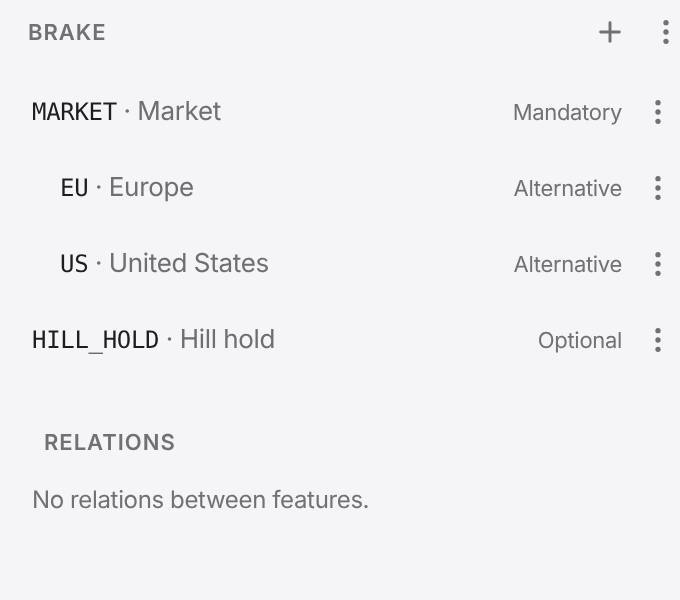
Create tree creates a new tree, Create feature a feature in it. Every feature has:
- a Name of capital letters, digits and underscores, such as
HILL_HOLD. The name cannot be changed later, because conditions use it. - a Label for reading, such as “Hill hold”,
- a Kind that says how it is selected under its parent feature:
| Kind | meaning when the parent is selected |
|---|---|
| Mandatory | always selected too |
| Optional | may be selected or not |
| Alternative | exactly one of the siblings is selected |
| Or | at least one of the siblings is selected |
A feature’s menu creates child features. A feature or tree can be deleted only while nothing uses it; Check usage shows where it is still used.
Relations between features
From the tree’s menu, Create relation adds rules beyond the structure: one feature requires another or excludes it. A project tree may also point at features of global trees.
Variants
Create variant creates a variant with name, Code and description. In its column of the table you select the features; every click is saved at once. Mirador helps:
- Selecting a feature selects its parent features too.
- Deselecting one deselects its child features.
- Mandatory features are added.
Above every column, Mirador shows whether the selection keeps all rules: Valid, or the number of violations. A click lists them. An invalid variant can be saved and viewed, but not used for baselines, reviews and documents.
A project variant can be based on a global variant: it inherits its selection, follows later changes to it and adds only what the project needs on top.
Analysis and report
- Analysis checks whether the trees can be satisfied at all and names dead features (possible in no valid selection) and false-optional features (always selected, although created as optional). This is an exact check, not AI.
- Report shows which requirements have no feature selection, what applies per variant, what is in no variant, where selections contradict and which features are unused.
Features on requirements
The detail panel of a requirement has the Features field: a tree to tick. A requirement applies in a variant when
- at least one of its features is selected in the variant and
- its parent chapter applies in the variant.
Two consequences worth knowing:
- Without a feature, a place – requirement, folder or set – applies in
no variant. A folder without a feature takes its whole content with
it. Whatever all products share, sets and folders included, gets a
mandatory feature at the top level, such as
CORE. - A chapter that does not apply in a variant takes its requirements with it. Under Effective through parent chapters you see which chapter has a say.
Instead of a list, Use a condition… lets you write a condition with
AND, OR, NOT and brackets over TREE.FEATURE:
BRAKE.EU AND NOT BRAKE.HILL_HOLD
NOT binds more strongly than AND, AND more strongly than OR. Names
must be written exactly as in the tree.
For many requirements at once, select them in the directory and choose Assign features… – with Replace, Add or Remove.
The project from a variant’s point of view
In the directory and the traceability view, pick a variant at the top instead of All variants. In the directory you also decide:
- Filter shows only what applies in the variant.
- Mark shows everything and marks what is Not in variant.
Editing remains possible in both cases. Search, filters, reviews, baseline comparisons and documents can be limited to a variant as well.
Reuse across projects
Whatever several products or projects share, you maintain once. For this, the context menu of an artifact in the directory offers Reuse… – including into a specification of another project. The dialog asks for the Target specification, the Position in it and how the places should be related:
| Kind | what you get | can it diverge? |
|---|---|---|
| Share (base artifact) | no new artifact – the target specification only receives another place onto the same base artifact; editing affects every place at once, including places in other projects | no – only after Detach |
| Copy with Connect as a sync group | a copy that stays connected to the original: show the delta and adopt changes | yes, visibly |
| Copy without a group | a free copy – no connection, no origin | yes |
Including the subtree brings everything below along, each artifact with its own sync group; for a set always. Carry the links over transfers the relationships inside the subtree to the copies, External links too those beyond it. Sets cannot be shared, only copied.
Base artifacts
A base artifact carries the badge shared base artifact in the directory. Base artifact: places… in the context menu shows everywhere it is used. There you can Detach (free copy) a place – it gets its own copy and may diverge, the other places stay untouched – or choose Detach + sync group so that the copy stays connected to the other places. Remove this place takes one place out; only the last place deletes the artifact.
A relationship on a base artifact can be anchored at the base artifact – it then applies at every usage site – or at one place only. A baseline freezes, per place, what applies there.
Sync groups
Connected copies carry the badge sync group; its hint says whether all members are identical or differences are present. Usage sites… in the context menu opens the group:
- Delta against another member shows a Verdict per Attribute: identical, changed here only, changed there only or excluded. It rests on the Three-way base – the last state both sides had in common; without such a base, Mirador shows the differences without a verdict.
- You choose the Direction of the adoption and Adopt the values you want. Every adoption is an ordinary change: with history, suspect links and sync back to Jira or Jama.
- Attributes in which variants are meant to differ (such as a classification) you Exclude from comparison and adoption – as a default in the type schema or per group.
- A group consists of peers – any side may adopt from any other – or one member leads the group: adoption then happens only from there, from a catalogue for example. You set this when reusing with The source leads the group (catalogue); later a member can Give up the lead.
- Leave the group makes the copy independent; the artifact and its content stay unchanged.
For many artifacts at once, the Exchange button in the directory offers Propagate: this specification’s differing values go to every sync-group partner – Into other specifications or Within: module → module when the variants live as modules in one specification. Targets without write access and locked targets are reported, never overwritten.
Merging lines
When two states of the same specification are worked on in parallel for a while – a negotiation state and an internal version, say – Mirador speaks of lines: separate specifications whose artifacts are paired in sync groups. Merge under Exchange brings another line into the current one:
- You choose the Source line; the current specification is the target.
- The Preview compares Source and Target per artifact pair and attribute against their common base and gives a Verdict: source changed only or target changed only – adoptable automatically – or Conflict — both changed. Under Structure are artifacts Added in the source or Deleted in the target; delete versus change is a conflict.
- For every conflict you make a Decision: adopt, do not adopt or your own Merged value. The merge waits until no conflict is left open.
- Save draft stores the decisions in the service so that several people can work on the same draft; Merge executes it.
The target line keeps its Feature selection; the merge does not change it. Artifacts that others have locked are skipped, never overwritten; if one side has changed since the preview, Mirador rejects the affected decision instead of applying it. An executed draft is immutable; for another round, reload the preview.