Traceability
Trace requirements across up to ten levels, find gaps and check suspect relationships after a change.
Work in progress. This documentation is not complete yet. If something is missing, write to us: support@wiestigo.com
As of 9 October 2026 · checked against Wiestigo Mirador 0.1.0
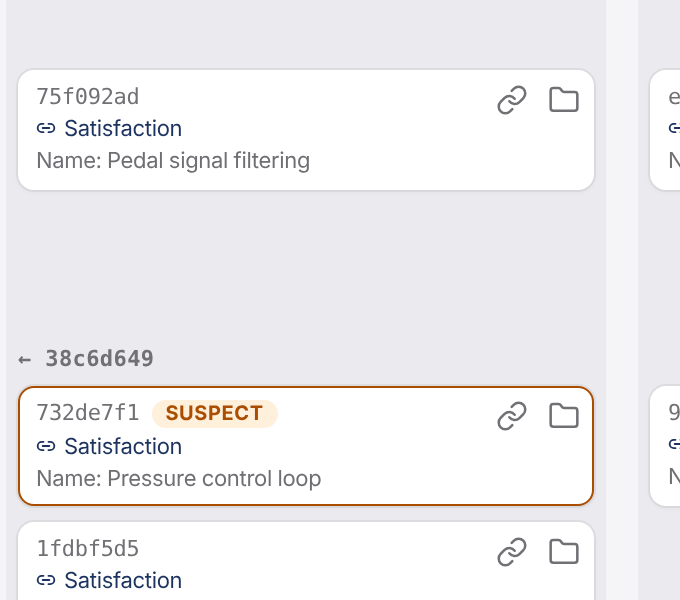
The Traceability view shows how requirements connect across the levels of a project: from the stakeholder requirement through system and software requirements down to the test case. Each level is a column, each requirement a card, and next to a card are the cards linked to it.
Levels and direction
- A level is an artifact set or a folder. You pick it from the tree in the column header; Add level adds another one, up to ten. A column may also come from another project.
- The direction decides which relationships the board follows: Downstream – outgoing edges or Upstream – incoming edges.
- From the second column on, you choose which relationship type the step from the previous column takes – for example only “Tests” towards the test level. Without a choice, Any relationship type applies.
Finding gaps
With two columns or more, every column shows its coverage:
| Setting | shows |
|---|---|
| All | all cards of the level |
| Not covered | cards without a relationship to the neighbouring column – the gaps |
| Reaching this level | cards a path from the first column leads to |
The number of uncovered cards is shown in the column header. In addition, every column can be narrowed by text or, via Filter…, by conditions on attributes.
What the cards show
In a column’s menu, under Displayed attributes, you choose which attributes the cards show and order them by dragging. The choice applies per level. Every card also names the relationship type it was reached by.
A click on a card opens the element; the chain icon manages its relationships, the folder icon shows it in the directory.
Suspect relationships
When an element changes, Mirador can mark its relationships as suspect: the linked requirement or test may no longer fit. Whether a change to the source, the target or both triggers this is set per relationship type in the type schema. In the built-in type schema it is switched off for all relationship types – an administrator switches it on where your process requires it.
A suspect relationship is highlighted on the card. Whoever has checked it ticks Mark as reviewed (clear suspect flag) in the element’s relationship panel. Clearing is always a deliberate action – it never happens on its own.
Views
Direction, levels, relationship types, attributes, column filters and coverage can be saved as a view (Save view, on the left under Views).
- A private view is visible only to its owner; a shared one to everyone in the project.
- A project administrator can make a shared view the project default. The traceability view then opens with it for everyone.
Export
Export writes the board as CSV or Excel: one row per complete path, with the chosen attributes, the coverage and – if selected – only what applies in a variant.