Baselines
Freeze the state of a project, view it and compare two states word by word.
Work in progress. This documentation is not complete yet. If something is missing, write to us: support@wiestigo.com
As of 9 October 2026 · checked against Wiestigo Mirador 0.1.0
A baseline freezes the state of a whole project: every requirement in its revision at the time, its place in the outline, the relationships, and the feature trees and variants. Baselines are the basis for releases, reviews and documents that must come out the same way later.
Create a baseline
In the Baselines tab, choose New baseline, enter a Name and optionally a Description, and confirm with Create baseline. The name must be unique within the project. Anyone who may edit in the project may create one.
Comments, locks and reviews are not part of a baseline – they are live data and always refer to the current state.
View a baseline
The list shows every baseline with date, creator and scope (“25 artifacts · 18 relationships”). View opens it in the directory: there it is read-only, with a notice at the top and the Back to current state button. Attachments can be downloaded from a baseline but not changed.
The project administrator may rename and delete baselines. A baseline cannot be deleted while a review or a check result refers to it.
Compare two states
Compare opens two selectors: the state to compare from and the state to compare to. Each can be a baseline or the Current state; the arrow between them swaps them.
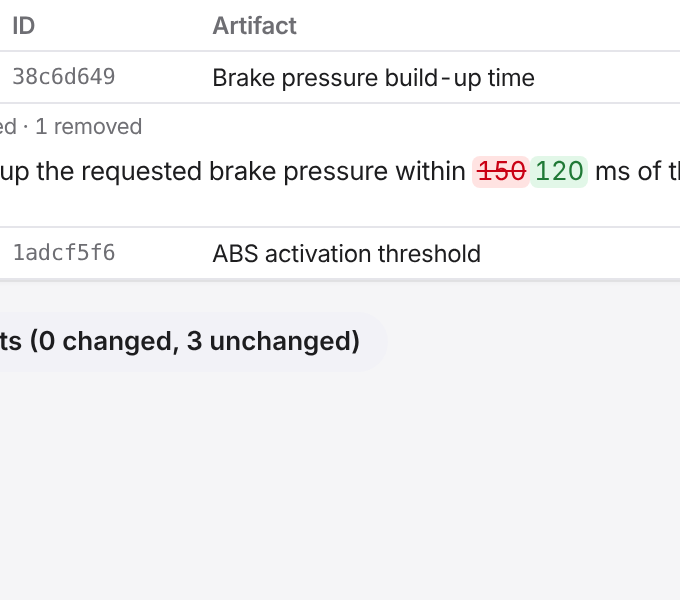
The comparison counts Added, Removed, Changed and Unchanged. A click on one of these numbers shows only those elements; the unchanged ones are hidden at first.
Every changed requirement can be expanded:
- Mirador shows longer texts word by word – additions highlighted, removals struck through.
- Short values such as a status appear as “old → new”.
- A moved requirement is marked as moved, a changed type as type changed.
Below follow the changed relationships and, under Trees and variants, what changed in features and variants.
The same comparison for a single element is in the detail panel under Baseline comparison.