Directory
A project’s requirements as a tree and a table – create, arrange, edit, filter and check.
Work in progress. This documentation is not complete yet. If something is missing, write to us: support@wiestigo.com
As of 12 October 2026 · checked against Wiestigo Mirador 0.1.0
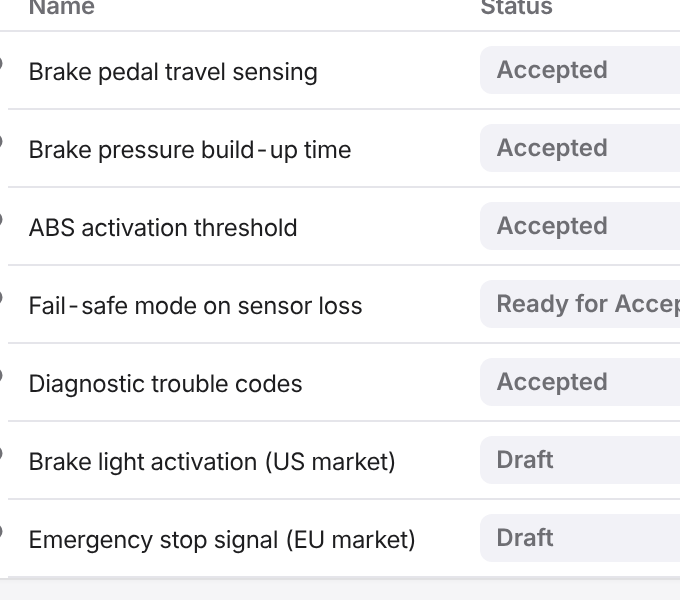
The Directory view is where you spend most of your time. On the left is the Project structure as a tree, on the right the elements of the selected folder as a table, and next to it, on request, the detail panel of an element.
The project structure
The tree shows folders and requirements in their outline. Only artifact sets sit at the top level – the large parts of a specification, such as “System Requirements” or “Test Specification”; every element sits in a set.
- Create: the plus in the header of the tree (Add element), or the plus that appears when you hover over a folder.
- Rename: double-click the name, or Rename in the context menu.
- Arrange: by dragging. Drop on the top or bottom edge of a folder to place before or after it, in the middle to place inside.
- Delete: only via the context menu. Mirador does not ask; it shows a message with Undo instead.
The context menu (right mouse button) also offers: create an element of a given type (New artifact), change its type (Convert to), Copy with everything below it or Copy with children (direct children only), Copy complex…, Create relationships, Reuse… and Bulk change….
The table
The table shows the elements of the selected folder with their attributes.
- Edit: a click into a text cell opens it for typing; Enter saves, Esc discards. Choice fields such as the status are drop-down menus with the values of the type schema. The id and the type cannot be changed here.
- Sort and arrange: a click on the column header sorts, dragging reorders the columns, dragging the edge changes the width.
- Columns: under Columns you choose which attributes appear and reorder them by dragging.
- Filter: the Filter requirements… field searches the table.
Saved views
Columns, order, widths, filter and sorting can be saved as a view. The button carries the name of the active view.
- A view starts out private. Share with the project makes it available to everyone in the project.
- A project administrator can make a shared view the default for a set (Open this set with it). Whoever opens the set then sees these columns – in the sets below it as well.
Several elements at once
Select rows with the check boxes, a range with Shift+click. The bar above offers:
- choose an attribute, set a value and Apply,
- Assign features… (see Variants),
- Actions – the same menu as in the tree, for the whole selection.
Bulk change sets attributes, moves, links or unlinks and converts types. It first computes a plan, then changes. A bulk change cannot be undone.
The detail panel
The arrow at the end of a row opens the details of an element:
- one field per attribute. Choice fields save at once, typed values when you leave the field; Esc or Discard takes them back,
- Features, Attachments (up to 1 GiB per file and 10 per element, unless your operations team sets otherwise) and the relationships,
- in the button bar: relationships, comments, Version history with every earlier revision, Lock and Baseline comparison.
Locking an element prevents anyone else from changing it. The lock does not expire on its own; its owner releases it, as can a project administrator or an administrator.
Comments
In the comment panel you write posts and replies. A settled thread is closed with Resolve and can be reopened. Findings from reviews appear here too, marked as review findings.
Filters and checks
Above the table you switch between Directory, Filter and Checks.
Filters search the whole project. Conditions exist for attributes, system fields, structure, relationships, comments, reviews, changes against a baseline and full text; they can be grouped with All, Any or None of the following conditions. The hits can be exported as CSV or Excel or changed together. You save a filter privately or – from the editor role on – for the project.
Checks turn a filter into a rule that should hold, for example “no system requirement without a test”:
| Expectation | passed when |
|---|---|
| No hits | the filter finds nothing |
| At most n hits | it finds at most n elements |
| At least n hits | it finds at least n elements |
| Every artifact of a base filter | every element of a second filter is hit as well |
Every check has a severity (Info, Warning, Error). It runs with Run now or Run all; every result is kept as evidence.
An earlier state
Once the project has baselines, the Current state selector appears above the table. Choose a baseline there and the directory shows its frozen state – read-only, until you choose Back to current state.
Import, export and exchange
- Import reads a ReqIF file or an edited Excel workbook, Export writes CSV, Excel, a workbook for reading back in, or ReqIF. Both are described in Import and export.
- Exchange merges elements, propagates them or synchronises with Jira and Jama – see Jira and Jama.